



Power BI Pharmacy Inventory Dashboard: KPIs, Examples and Design Guide
Posted on October 29, 2026

Contents
Every expired medicine can represent lost inventory value. Every stockout can mean an unmet need or a missed sale. And every slow-moving product ties up money that could be used elsewhere in the pharmacy.
When stock, sales, expiry dates, and supplier information sit in separate systems, risks can be missed. A Power BI pharmacy inventory dashboard brings these records into one interactive report, helping teams investigate trends and make better informed decisions.
What Is a Power BI Pharmacy Inventory Dashboard?
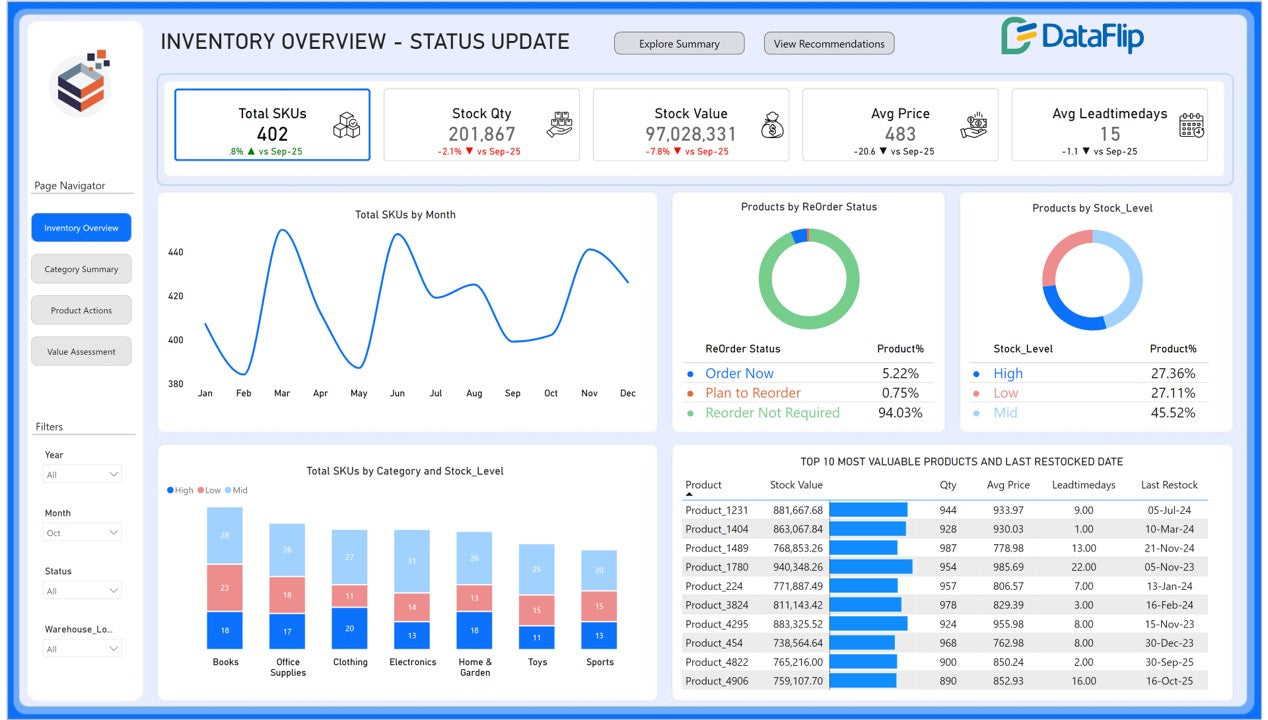
A Power BI pharmacy inventory dashboard is an interactive report for monitoring stock levels, inventory value, medicine expiry, sales performance, and replenishment needs. Power Query helps prepare data, DAX supports calculations, and Power BI presents results through charts, tables, and filters.
A dashboard can show which batches are nearing expiry, how much capital is tied up in stock, which products experience stockouts, and how availability differs between branches. Users can filter information and investigate summary figures.
Power BI is a reporting layer, not a replacement for pharmacy management software. Operational stock updates require suitable integrations and processes, while useful insights depend on accurate data and follow-through.
Why Pharmacy Inventory Visibility Matters
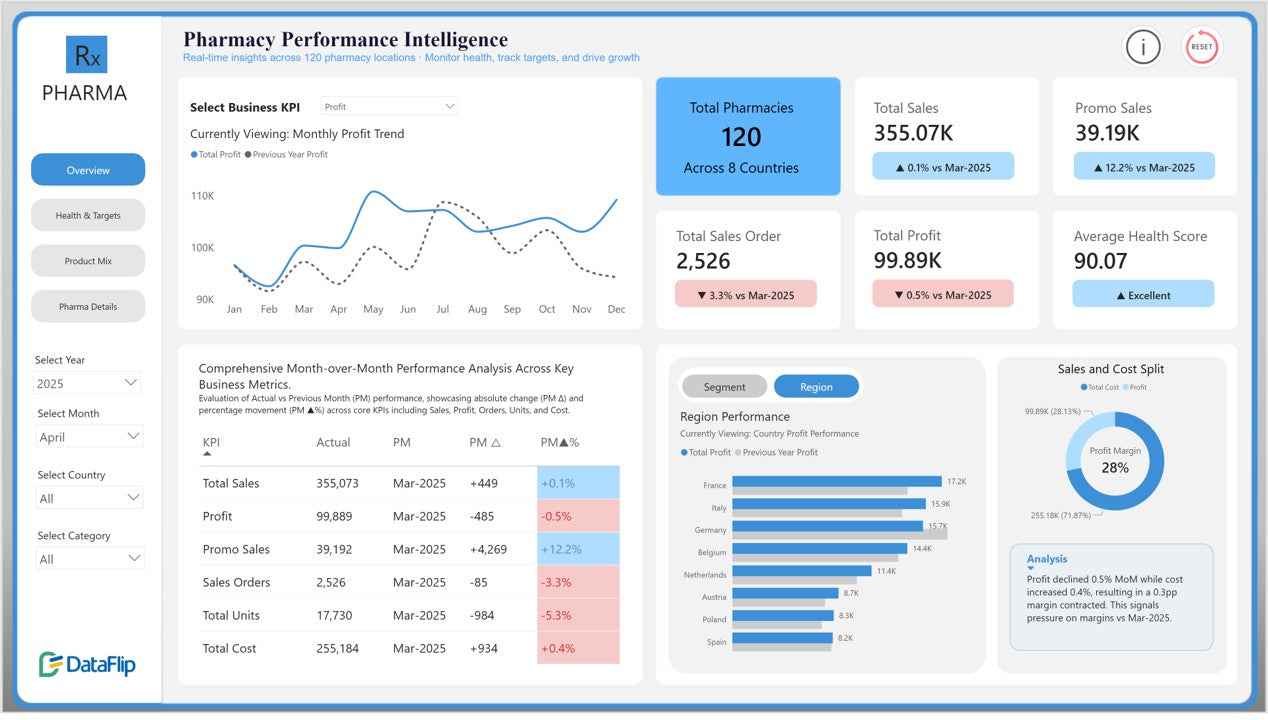
Pharmacies face several recurring challenges. Different batches can have different expiry dates, so product level reports may hide stock requiring review. Demand changes and supplier delays can cause stockouts. Slow-moving products tie up capital and storage space. Comparing order and receipt dates can reveal supplier delays, while consolidated branch reporting can show where excess stock and shortages coexist.
A dashboard cannot solve these issues alone, but it can make them easier to identify.
Essential KPIs for a Pharmacy Inventory Dashboard
Choose KPIs according to the pharmacy’s operating model, inventory policies, and available data.
Total inventory value measures eligible quantities multiplied by unit cost, summed across products. It shows how much capital is invested in stock.
Near-expiry stock value measures the value of eligible batches expiring within a defined period. It helps teams identify inventory requiring review.
Expired stock value measures recorded inventory past its expiry date. It helps monitor expiry exposure.
Stockout rate is stockout observations divided by eligible observations, multiplied by 100. It helps identify product availability problems.
Inventory turnover is period cost of goods sold (COGS) divided by average inventory value. It indicates how quickly inventory moves relative to its value.
Days of inventory on hand is average inventory value divided by period COGS, multiplied by the number of days in the period. It estimates inventory coverage.
Slow-moving stock identifies products with limited movement over a defined period and helps flag potential excess stock.
Reorder status compares current eligible stock with the reorder point to highlight possible replenishment needs.
Fill rate is units fulfilled divided by units requested, multiplied by 100. It measures fulfillment performance when requested and fulfilled quantities are recorded.
Sales revenue tracks sales value after accounting for returns and applicable reporting rules.
Gross margin is gross profit divided by net sales, multiplied by 100. It helps evaluate profitability.
Supplier lead time is the receipt date minus the order date. It helps assess delivery performance.
Use consistent cost definitions and reporting periods. Higher turnover is not always better if it contributes to stockouts. Keep near-expiry and expired stock separate, and validate each KPI against source records.
Five Useful Dashboard Examples
1. Executive Inventory Overview
An executive dashboard gives owners and operations managers a consolidated view of performance. Include inventory value, near-expiry stock value, stockout rate, turnover, and sales trends. KPI cards, trend charts, inventory value by location, and an exceptions table can make priorities clear.
One branch may hold slow-moving stock while another runs short, prompting a review of purchasing patterns and approved stock transfers.
2. Medicine Expiry Tracking
An expiry dashboard helps teams identify batches that need attention. Useful fields include medicine name, batch number, expiry date, quantity, unit cost, stock value, location, and days remaining until expiry.
Group records into configurable windows, such as expired, within 30 days, 31–60 days, and 61–90 days. Adapt these illustrative periods to applicable requirements and pharmacy policies, then follow approved procedures for stock rotation or returns.
3. Medicine Stockout Analysis
Track stockout frequency, duration, affected locations, recorded unfulfilled demand, lead time, and replenishment delays. Ranked bars show frequent stockouts; trend charts show changes over time.
Recurring shortages may mean reorder points need review or supplier lead times are longer than expected. Historical analysis requires reliable stock history or recorded stockout events; today’s balance alone cannot prove past availability.
4. Turnover and Slow-Moving Stock
Compare inventory value with product movement and highlight high-value products with limited movement. Before reducing stock, review demand, outstanding orders, and expiry exposure. Low turnover does not automatically justify reducing essential or contingency stock.
5. Sales Analytics and Replenishment
Combining sales history, current inventory, and supplier information helps purchasing teams make more informed decisions.
A basic formula is:
Reorder point = Expected demand during lead time + Safety stock
For example, a medicine sells an average of eight units per day, has a supplier lead time of five days, and requires 12 units of safety stock.
Reorder point = (8 × 5) + 12 = 52 units
Adjust settings for demand variability, supplier reliability, shelf life, and purchasing constraints. Automated purchasing requires additional rules and integration.
Explore the DataFlip Pharmacy Performance Analysis Power BI Dashboard Template to assess whether its reporting structure suits your requirements.
How to Build a Pharmacy Inventory Dashboard in Power BI
Step 1: Define reporting needs. Owners may need financial summaries, while inventory managers may need batch level expiry details.
Step 2: Identify data sources. Gather information from pharmacy software, ERP or point-of-sale systems, purchasing records, or Excel. Check for medicine IDs, batches, expiry dates, stock balances, sales, and receipts.
Step 3: Clean data in Power Query. Standardize product identifiers, correct date formats, investigate duplicates, and align units of measure. Treat missing expiry dates as data quality issues, not proof that stock does not expire.
Step 4: Build the data model. Where appropriate, use a star schema with dimension tables for medicines, suppliers, locations, and dates, connected to fact tables for sales, inventory snapshots, and stock movements. Define the level of detail in each table. Batch level expiry reporting requires reliable batch identifiers and expiry records.
Microsoft's Power BI star-schema guidance explains how dimension and fact tables support filtering, grouping, and summarization.
Step 5: Create measures and visuals. Develop measures for inventory value, expiry exposure, turnover, days on hand, and stockout analysis. Use KPI cards for summaries, line charts for trends, bar charts for comparisons, and tables for medicine level exceptions.
Step 6: Validate and configure. Add filters for date, location, supplier, category, and stock status. Reconcile totals with source records, including returns and adjustments. Set refresh schedules according to source capabilities and licensing, test permissions, and ask managers to validate the report.
See Microsoft's Power BI data refresh documentation and row-level security guidance.
Data Sources and Data Quality
A pharmacy dashboard may use several connected datasets:
-
Medicine master: Product identifiers and categories.
-
Batch register: Batch numbers and expiry dates.
-
Inventory snapshots: Stock balances preserved over time.
-
Inventory movements: Receipts, issues, transfers, and adjustments.
-
Sales transactions: Revenue and sales analysis.
-
Purchase orders and receipts: Ordering and delivery performance.
-
Supplier master: Supplier comparisons.
-
Location master: Branch-level reporting.
-
Date table: Time-based analysis.
Current stock balances do not show past availability. Historical analysis needs dated snapshots, reliable transaction history, or another validated method.
Also investigate duplicate IDs, incompatible units, negative balances, missing expiry dates, and incorrectly handled returns or damaged stock.
Example DAX Measures
The following examples assume an Inventory table with QuantityOnHand, UnitCost, and ExpiryDate columns. Adapt them to your data model before production use.
Total inventory value
Total Inventory Value =
SUMX(
Inventory,
Inventory[QuantityOnHand] * Inventory[UnitCost]
)
This calculates recorded inventory value. Additional filters may be needed to exclude unavailable or otherwise ineligible stock.
Near-expiry stock value
Near Expiry Stock Value =
VAR TodayDate = TODAY()
RETURN
CALCULATE(
[Total Inventory Value],
FILTER(
Inventory,
NOT ISBLANK(Inventory[ExpiryDate])
&& Inventory[ExpiryDate] >= TodayDate
&& Inventory[ExpiryDate] <= TodayDate + 90
)
)
This example uses a 90-day warning window. Adjust it to pharmacy policy.
Expired stock value
Expired Stock Value =
VAR TodayDate = TODAY()
RETURN
CALCULATE(
[Total Inventory Value],
FILTER(
Inventory,
NOT ISBLANK(Inventory[ExpiryDate])
&& Inventory[ExpiryDate] < TodayDate
)
)
This identifies recorded stock past its expiry date. It does not independently confirm physical stock or completed financial write-offs.
Turnover should use period COGS divided by average inventory value. Days on hand can be calculated by dividing average inventory value by period COGS and multiplying by the number of days in the period. Both require consistent definitions and suitable historical data.
Pharmacy Dashboard Design Best Practices
A dashboard should make important information easy to understand.
-
Prioritize key indicators: Place inventory value, expiry exposure, and stockout measures near the top.
-
Choose useful visuals: Use line charts for trends, bar charts for comparisons, and tables for detailed records.
-
Use clear status indicators: Support warning colors with labels or icons.
-
Keep filters practical: Let users investigate meaningful questions without overwhelming the page.
-
Show data freshness: Display the last successful refresh and flag missing or stale records.
-
Protect sensitive data: Configure access according to user responsibilities.
-
Avoid clutter: Separate executive summaries from detailed batch and transaction reports.
The goal is to clarify the problem and the next action.
Business Benefits and Measuring ROI
A dashboard can support expiry management, replenishment, supplier evaluation, stock availability, and reporting efficiency. Results depend on data quality, adoption, and follow-through.
Establish a baseline and measure changes in expiry losses, stockouts, emergency procurement costs, reporting hours, and inventory levels.
Use this framework:
Net benefit = Operational savings + Process savings − Implementation and ongoing costs
ROI (%) = Net benefit ÷ Total relevant costs × 100
For example, if verified annual savings total $2,00,000 and first-year implementation and operating costs total $1,00,000, the illustrative net benefit is $1,00,000 and ROI is 100%. These figures are hypothetical, not actual customer results.
Build Internally or Use a Template?
Internal development may suit pharmacies with Power BI expertise, straightforward data sources, and maintenance capacity. A template can speed up standard reporting.
Batch-level expiry logic, system integrations, historical stockout analysis, or location specific security may require customization. Review a template’s KPIs, sample dataset, PBIX file, and supported data sources before buying.
DataFlip offers a Pharmacy Performance Analysis Power BI Dashboard Template. For more complex requirements, evaluate DataFlip’s customization options and confirm scope, integrations, and maintenance arrangements before choosing a solution.
Conclusion
Pharmacy inventory decisions depend on more than current stock. Expiry dates, sales, supplier lead times, purchasing activity, and location differences all matter. A Power BI pharmacy inventory dashboard brings these details into a structured report. Review the DataFlip template as a possible starting point, and consider customization for additional KPIs or complex integrations.
Frequently Asked Questions
What is a Power BI pharmacy inventory dashboard?
It is an interactive report combining inventory, sales, expiry, and purchasing data to support stock management and operational decisions.
Which KPIs are most important?
Start with inventory value, near-expiry and expired stock, stockout rate, turnover, days on hand, slow-moving products, and reorder status.
Can Power BI track medicine expiry dates?
Yes, if valid batch-level expiry data is available. The dashboard can group batches into configurable expiry windows and highlight records for review.
Can Power BI predict medicine demand?
It can support forecasting with suitable historical data and validated methods. Automated purchasing requires additional logic.
How much does a pharmacy inventory dashboard cost?
Costs depend on complexity, data quality, integrations, locations, licensing, security, and maintenance. A template may suit standard needs, while complex implementations may require custom development.
About the Author


